How to add DAX calculations to the PowerPivot workbooks
User Rating: 4 / 5


There are 2 places where you can add DAX calcualtions to your PowerPivot workbooks
- In the PowerPivot window you can add calculated columns for existing tables
- In the Pivot window you can add new calculated measure
Adding calculated columns in the PowerPivot window
To add calculated column go to PowerPivot window, select table and go to the column at the very right that will have a header "Add column". Select that column and in the formula area enter DAX formula, for example:
=[FirstName] & " " & [LastName]
After you will hit enter, you will see new calculated column created with name "CalculatedColumn1".
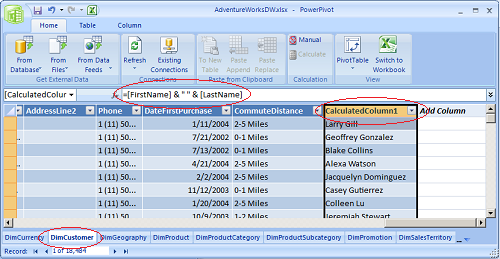
You should rename that calculated column by selecting it again, then doing right mouse click and choosing "rename column" and then entering new column name "Full Name".
Adding new calculated measures in the Pivot window
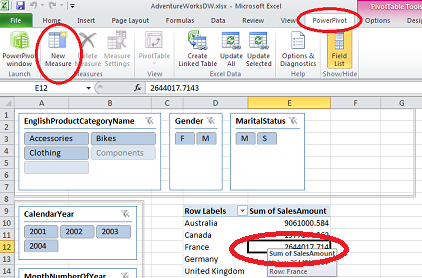
In Pivot window select area within pivot or slicer or chart and then in PowerPivot menu select "New measure":
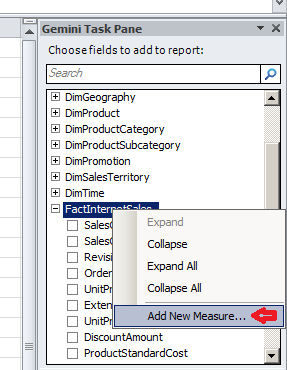
Or you can also start the same dialog by doing right mouse click on the table name in the PowerPivot Task Pane. This is probably more convinient way of adding new measure, as this measures by default will be assigned to the selected table.
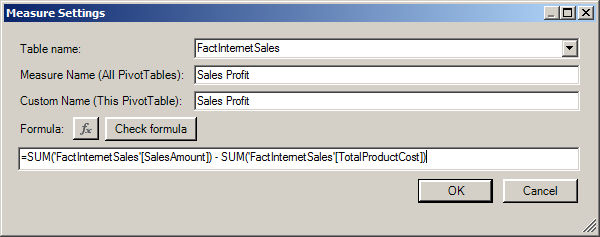
In the new measure window you will have to select table that this new measure will be assigned to, then measure name and DAX formula: