Q: How can I change connection information (server name, DB name, etc) for existing PowerPivot table?
User Rating: 4 / 5


Q: How can I change connection information (server name, DB name, etc) for existing PowerPivot table?
Note: These instructions will work just with the latest build of PowerPivot (not available to public). These steps will not work with PowerPivot for Excel November CTP (CTP3).
A: To change PowerPivot tables connection information select "Design" pane in the PowerPivot window and then choose "Existing Connections" menu item. From the "PowerPivot Data Connections" list select your existing connection that you would like to modify and then click on the "Edit" button.
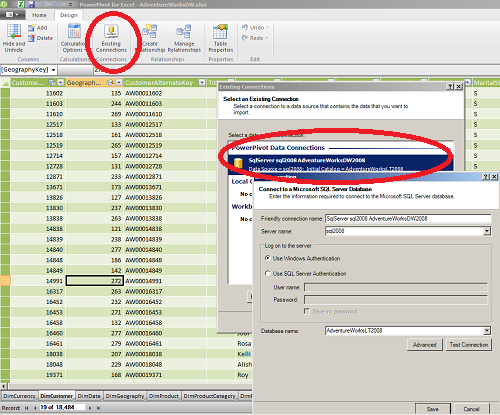
As soon as you will change any connection property, at the bottom of the "Edit Connection" screen you will see warning:
You have modified connection information. Save and refresh the tables to verify the connection.
After adjusting required connection information click "Save" button.
To reload all tables from changed connection select it in the "Existing Connections" window and click on the "Refresh" button.
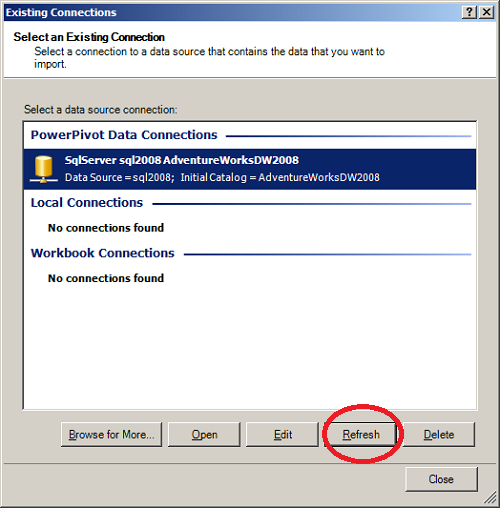
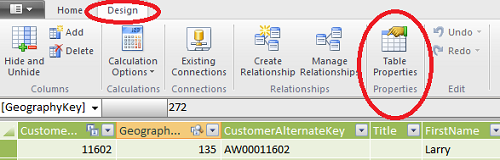
To reload selected tables from the changed connection close "Existing Connections" window and in the PowerPivot window select table that you would like to refresh. Then from the "Design" pane click on "Table Properties" button.
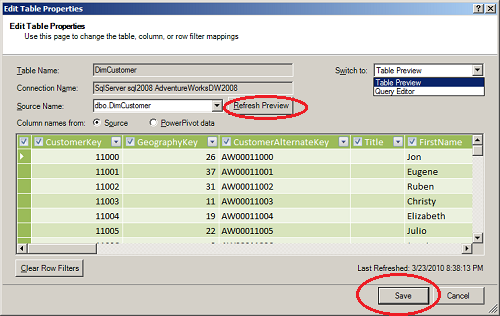
This will open new "Edit Table Properties" window. Here you can click on the "Refresh Preview" button to preview data from changed connection, or you can click on the "Save" button to reload table from the new source:
Done