Aliasing Columns in DAX

Reposted from Chris Webb's blog with the author's permission.
Creating a copy of a column with a new name is pretty simple in DAX: you can just use the AddColumns() function. For example if we take a model with the DimProductCategory table from Adventure Works in, we could create a copy of the EnglishProductCategoryName column like so:
evaluate
addcolumns(
DimProductCategory
, "Copy of Category Name"
, DimProductCategory[EnglishProductCategoryName])

However, in some calculations and queries I’ve been playing around with, this isn’t enough: I’ve not only needed to create a copy of the column but also to remove the original. So for example to crossjoin the DimProductCategory table with itself and get a cartesian product of all the possible combinations of Category name you can’t just do this:
evaluate
crossjoin(
summarize(
DimProductCategory
, DimProductCategory[EnglishProductCategoryName])
,
summarize(
DimProductCategory
, DimProductCategory[EnglishProductCategoryName])
)
Because you’ll get the following error:
Function CROSSJOIN does not allow two columns with the same name ‘DimProductCategory’[EnglishProductCategoryName].
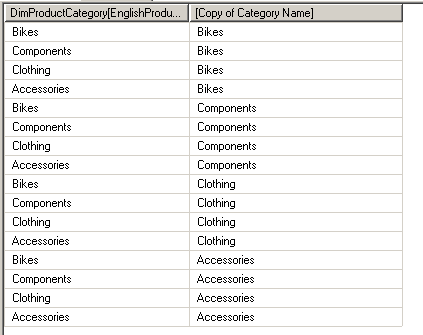
What you need to do is add the new column with AddColumns() and then use Summarize() to get a new table that only contains the values in this new column, like so:
evaluate
crossjoin(
summarize(
DimProductCategory
, DimProductCategory[EnglishProductCategoryName])
,
summarize(
addcolumns(
DimProductCategory
, "Copy of Category Name"
, DimProductCategory[EnglishProductCategoryName])
, [Copy of Category Name])
)
 |
Chris has been working with Microsoft BI tools since he started using beta 3 of OLAP Services back in the late 90s. Since then he has worked with Analysis Services in a number of roles (including three years spent with Microsoft Consulting Services) and he is now an independent consultant specialising in complex MDX, Analysis Services cube design and Analysis Services query performance problems. His company website can be found at http://www.crossjoin.co.uk and his blog can be found at http://cwebbbi.wordpress.com . |
Tags: dax